I love PhotoScape! If your photoshop skills are not up to par, then you will like this program too. Its 'film effect' filters are amazing, but what I really like about this program is its Noise Reduction (clear skin) feature - your woman will love you for using it, especially on close-ups (less visible blemishes/pores/lines). However, this functionality is not available in batch editor mode (last time I checked). *sigh*
Fortunately, ffmpeg offers the next best thing, and it's called High Quality 3D Denoise.
Just create an empty text file, rename it to, like, "Denoise_JPEG_files_in_this_folder.bat", copy/paste the code below, set the appropriate ffmpeg path, tweak to taste, copy/paste the batch file into a folder full of jpeg files, and you're ready to go!
BTW, set the value for "AdditionalVideoFilters" to blank if you don't want the set filter.
<code starts after this line>
@echo off
: _______________________________________________
: This batch file will apply ffmpeg's High Quality 3D Denoise filter on all found image files in the current folder (subfolders included) and open the output folder. Don't forget to set ffmpeg's full path.
: _______________________________________________
: enter required/desired settings
: set ffmpeg path (required). use double quotes.
set ffmpeg="C:\~ En Masse\third party bin\ffmpeg-20131222-git-9b195dd-win32-static\bin\ffmpeg.exe"
: set LumaSpatial. practical range for a 640x480 image is 4-12. no quotes.
set LumaSpatial=12
: set image file types to search/process. note that all files will be converted to the set outputfile extension. no quotes.
set FileTypes=*.jpg, *.jpeg, *.bmp, *.png, *.tif, *.tiff
: output folder (subfolder). no quotes/spaces.
set OutputFolder=~Denoised
: output file name suffix. no quotes.
set Suffix=_Denoised
: output file extension (jpg, png, bmp, etc). no quotes.
set OutputExtension=jpg
: additional video filter (optional). this is for demonstration purposes only. precede each filter with a comma ','. you can set the value to blank if you don't want this feature. no double quotes at both ends.
set AdditionalVideoFilters=, curves=master='0.05/0.045 0.06/0.06 0.5/0.6'
: _______________________________________________
title %~n0
: create the output folder
md %OutputFolder%
: open the created output folder
start explorer.exe %OutputFolder%
: search and process
FOR /F "delims=" %%A IN ('dir /a:-d /b /o:n /s %FileTypes%') DO (
echo %%A
%ffmpeg% -threads 1 -y -f image2 -i "%%A" -f image2 -qscale:v 1 -vf "hqdn3d=luma_spatial=%LumaSpatial%: chroma_spatial=1: luma_tmp=1: chroma_tmp=1 %AdditionalVideoFilters%" "%OutputFolder%\%%~nA%Suffix%.%OutputExtension%"
)
exit
Showing posts with label batch. Show all posts
Showing posts with label batch. Show all posts
Friday, February 7, 2014

En Masse ~ batch processor for videos
This blog has been moved. Please click here: http://vidprokenmasse.blogspot.com/2014/07/vidprokenmasse.html

En Masse is an ffmpeg front-end designed specifically for processing a lot of videos (last tested on 1849 files). Operation can be summarized in four steps: Select preset, select folder, generate batch file, and convert. While it does not come with device-specific presets, the default presets serve as a sort of walk-through for what En Masse can do. The generated batch file provides several lines to facilitate resumption of an interrupted batch file (skip to file number x), some logging capability (elapsed time, render speed, rendered file size, possible failed encode, etc.), and another line which you can modify to launch another batch file. The idea behind En Masse is to provide carefree batch video processing for the total noob, and a convenient ffmpeg interface for the initiated.
The Preset Manager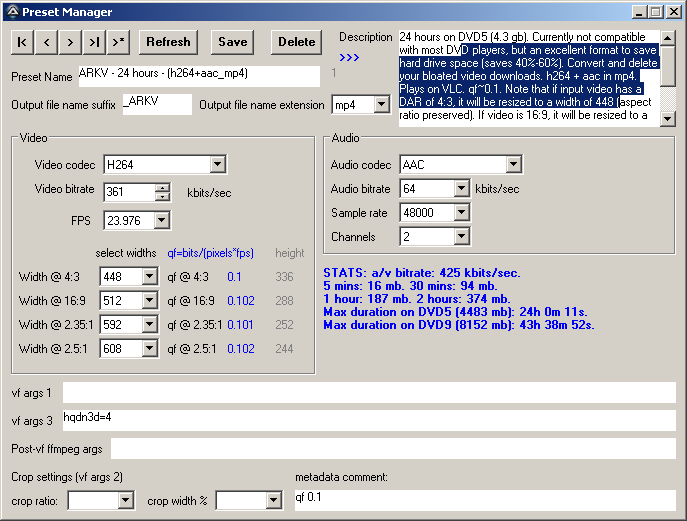
While it maybe odd to see four combo boxes for output width, a quick look at the qf column (blue text beside the width combo boxes) may make some sense to some users. This, of course, can be bypassed by setting all four combo boxes to a single number (or set to blanks). The option to maintain a uniform qf (varying output widths) is available, if you want it. Do also note that the preset manager lacks a height combo box to spare you the chore of calculating output height when resizing. As far as square pixel rendering and small integers can go, you can rest assured that the source video's aspect ratio will be preserved whether it is square pixel or anamorphic. Also included is a text box for additional ffmpeg parameters (Post-vf ffmpeg args) and two text boxes created exclusively for video filters (vf args 1 & 3).
VidProk.exe (formerly named OneToOne.exe)

Sometimes, En Masse's GUI is a bit cumbersome if you just want to process several videos. VidProk will happily take on this task. While intentionally similar to En Masse's 'Preset Manager', VidProk is armed with a 'see command' button (which ultimately provides some batch processing capability), a 'play' button, and a 'vf cheat sheet' button.
Play both @ pos 0x0: A unique feature of VidProk that places both source and processed windows on the top left corner of the screen (one window obscures the other). This play mode works in conjunction with the 'toggle' button which let's you alternate the top-most window (either source or processed). This let's you easily see the differences (particularly minute differences) between the unprocessed (source) and the processed (with filters e.g. unsharp, denoise, etc).
VF cheat sheet
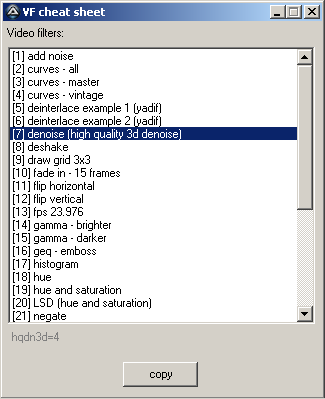
Select a filter, click 'copy', then paste to either 'vf args 1' or 'vf args 3'. 'vf args 1' should only be used if the filter needs to precede crop/scale filters (e.g. deinterlace). Separate each filter with a comma. After copy/pasting, click 'play' to preview.
Other Tools


Apart from their intended use, En Masse and VidProk are excellent learning tools for new ffmpeg users as both would readily reveal the ffmpeg (or ffplay) commands used.
En Masse is a home-brew solution created by a frustrated end-user for other end-users. En Masse does not write to the registry, does not automatically 'phone home' for updates, does not nag, does not coerce your browser to a new home page/search engine or to install a new toolbar, and does not require you to join a cult. En Masse is absolutely free, though small donations are very much welcome. Email me: chiqboy<[at]>gmail<[dot]>com
Youtube video:
New features for EnMasse_20140528:
1. En Masse can now burn-in subtitles (batch mode).
2. Dropped MediaInfo in favor of ffprobe. En Masse is now an all-ffmpeg solution.
3. New policy for En Masse & VidProk: For anamorphic sources, maintain anamorphic dimensions if not resized (width set to blank).
4. Two-pass encoding (En Masse & VidProk).
5. VidProk encoding is now logged like En Masse (shows elapsed time, rendered file size, etc.).
6. Numerous tweaks.
7. Updated to ffmpeg-20140502-git-0f9f24c-win32-static.
En Masse is an ffmpeg front-end designed specifically for processing a lot of videos (last tested on 1849 files). Operation can be summarized in four steps: Select preset, select folder, generate batch file, and convert. While it does not come with device-specific presets, the default presets serve as a sort of walk-through for what En Masse can do. The generated batch file provides several lines to facilitate resumption of an interrupted batch file (skip to file number x), some logging capability (elapsed time, render speed, rendered file size, possible failed encode, etc.), and another line which you can modify to launch another batch file. The idea behind En Masse is to provide carefree batch video processing for the total noob, and a convenient ffmpeg interface for the initiated.
The Preset Manager
While it maybe odd to see four combo boxes for output width, a quick look at the qf column (blue text beside the width combo boxes) may make some sense to some users. This, of course, can be bypassed by setting all four combo boxes to a single number (or set to blanks). The option to maintain a uniform qf (varying output widths) is available, if you want it. Do also note that the preset manager lacks a height combo box to spare you the chore of calculating output height when resizing. As far as square pixel rendering and small integers can go, you can rest assured that the source video's aspect ratio will be preserved whether it is square pixel or anamorphic. Also included is a text box for additional ffmpeg parameters (Post-vf ffmpeg args) and two text boxes created exclusively for video filters (vf args 1 & 3).
VidProk.exe (formerly named OneToOne.exe)
Sometimes, En Masse's GUI is a bit cumbersome if you just want to process several videos. VidProk will happily take on this task. While intentionally similar to En Masse's 'Preset Manager', VidProk is armed with a 'see command' button (which ultimately provides some batch processing capability), a 'play' button, and a 'vf cheat sheet' button.
Play both @ pos 0x0: A unique feature of VidProk that places both source and processed windows on the top left corner of the screen (one window obscures the other). This play mode works in conjunction with the 'toggle' button which let's you alternate the top-most window (either source or processed). This let's you easily see the differences (particularly minute differences) between the unprocessed (source) and the processed (with filters e.g. unsharp, denoise, etc).
VF cheat sheet
Select a filter, click 'copy', then paste to either 'vf args 1' or 'vf args 3'. 'vf args 1' should only be used if the filter needs to precede crop/scale filters (e.g. deinterlace). Separate each filter with a comma. After copy/pasting, click 'play' to preview.
Other Tools
Apart from their intended use, En Masse and VidProk are excellent learning tools for new ffmpeg users as both would readily reveal the ffmpeg (or ffplay) commands used.
En Masse is a home-brew solution created by a frustrated end-user for other end-users. En Masse does not write to the registry, does not automatically 'phone home' for updates, does not nag, does not coerce your browser to a new home page/search engine or to install a new toolbar, and does not require you to join a cult. En Masse is absolutely free, though small donations are very much welcome. Email me: chiqboy<[at]>gmail<[dot]>com
Youtube video:
Download link (last updated 2014.06.06):
New features for EnMasse_20140528:
1. En Masse can now burn-in subtitles (batch mode).
2. Dropped MediaInfo in favor of ffprobe. En Masse is now an all-ffmpeg solution.
3. New policy for En Masse & VidProk: For anamorphic sources, maintain anamorphic dimensions if not resized (width set to blank).
4. Two-pass encoding (En Masse & VidProk).
5. VidProk encoding is now logged like En Masse (shows elapsed time, rendered file size, etc.).
6. Numerous tweaks.
7. Updated to ffmpeg-20140502-git-0f9f24c-win32-static.
Subscribe to:
Posts (Atom)